|
3.
|
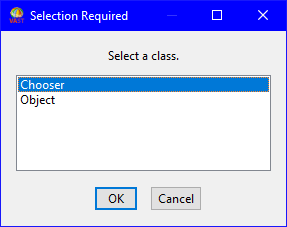
If your image already holds all classes contained in the application and no classes were ever deleted from the application, a window opens stating that all classes are loaded in your image. If this window opens, try the More Recent Editions menu item described below.

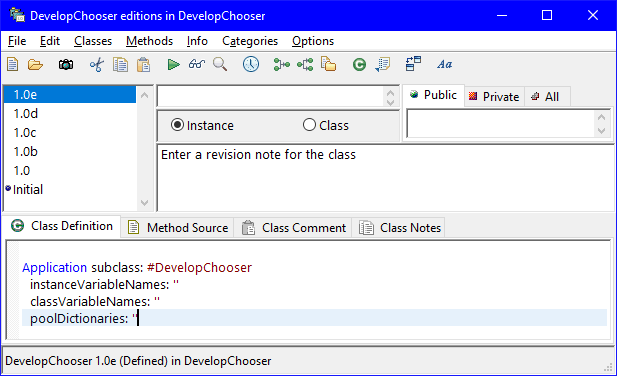
If you are not the owner or developer of the class, ask the owner or developer which edition belongs in the application. To learn the name of the owner or developer, select Show Owner or Show Developer from the Info menu. The name is displayed along the bottom of the window.
|
6.
|
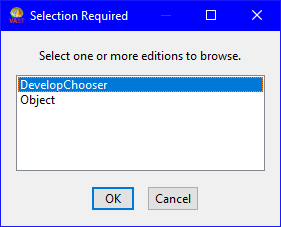
Load the class edition you lost. To do this, select the edition or version; then select Load from the Classes menu. This loads the class and its methods into your image.
|
|
4.
|
As you did for steps 5 and 6 above when using the Available menu item, determine what class edition or version belongs in the application and load it into your image. Repeat this procedure until all classes are recovered.
|
In addition to using the Available and More Recent Editions menu options, you can compare the editions of components loaded in your image to the editions in the library to determine what editions were lost during the crash. To do this, you use a Changes Browser.
You can open a Changes Browser from a Class Editions Browser. Thus, when doing the recovery procedures described above, you can open a Changes Browser by selecting two editions and then selecting Browse Changes from the Classes menu. This opens a browser that displays the two editions side-by-side.
To make it easier to compare the editions, select the next difference push button. This causes the system to highlight textual differences between the two editions.