The Smalltalk development environment makes extensive use of browsers--multipaned windows that you use to view and edit software components.
You can use two types of browsers in the VA Smalltalk Core development environment: system or VA Assist browsers (collectively referred to as standard browsers) and TrailBlazer browsers (sometimes referred to as enhanced browsers).
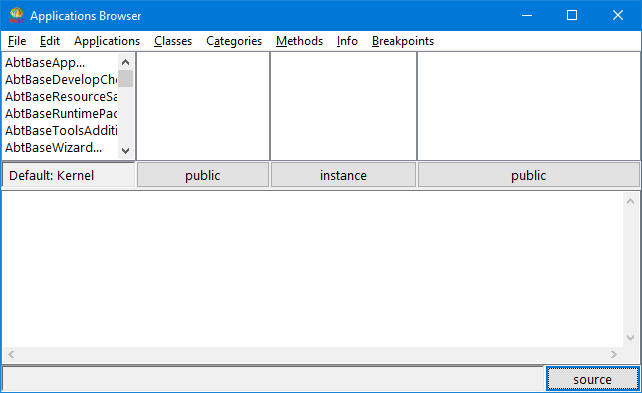
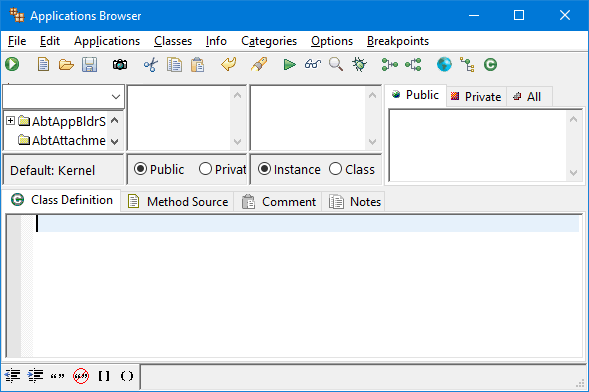
The name "browser" often appears as part of the tool name. A Class Browser, for example, enables you to see information about a class: its class definition, its methods, and categories for the methods. A Classes Browser enables you to see information about all classes in your image.
Some VA Smalltalk tools do not use the name "browser". You mainly use these tools to perform a specific task other than developing a class. The Debugger, for example, provides source-level debugging of a Smalltalk program.
After you are familiar with both types of browsers, you can decide which type you will use (of course, you can always change to the other type at any time). The choice is basically whether to work with many specialized windows or a few multipurpose windows (see Using the TrailBlazer browsers for more information)
Smalltalk browsers use context-sensitive pop-up menus. They are called context-sensitive because each pane in a browser can have a different menu. For example, the pop-up menu for a text pane is the same as the Edit menu found on the Transcript. A pane containing a list of methods, however, has the same pop-up menu as the Methods menu on the browser. To access a pane's pop-up menu, move the mouse pointer to the pane and press mouse button 2.