|
1.
|
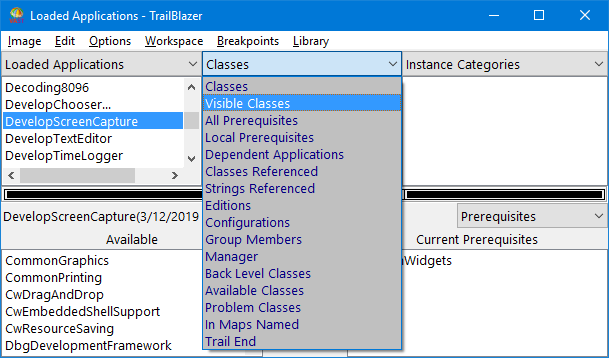
From a TrailBlazer browser named Loaded Applications with DevelopScreenCapture selected in the list of applications, select the down arrow to the right of the pane title Classes.
|
|
2.
|
|
3.
|
From the list of visible classes now displayed (upper middle pane), select Object. The class you are defining will subclass from this class.
|
Note that after you selected Object the lower half of the browser changed. It now displays the class definition--or source code--for Object in a description pane. You can change the display in this pane by selecting one of the options listed in the drop-down menu just above the pane.
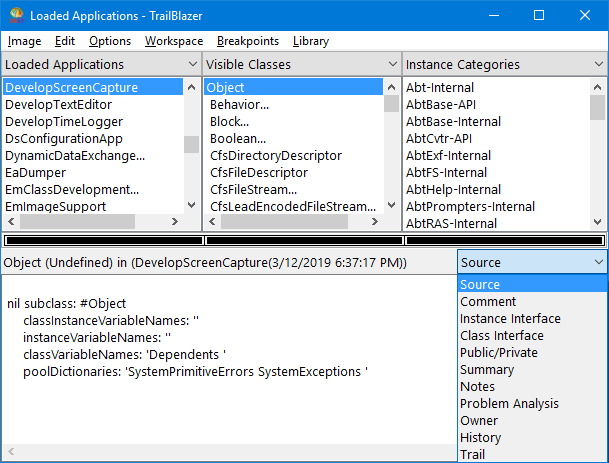
To continue with the example, keep the Source display.
|
4.
|
|
5.
|
|
7.
|
Type a class name for the screen capture tool in the displayed prompter. If you are using OS/2, type ScreenPMCapture. If you are using Windows, type ScreenWinCapture.
|
Though you can name the class anything you want, using one of these class names makes it easier to complete examples in Defining lineups for multiple platforms. The examples in that chapter use ScreenPMCapture and ScreenWinCapture in platform-specific lineups.
|
8.
|
Click on OK. A window opens, listing available subclass types.
|
|
9.
|