Review the discovered problems by selecting the Examine & Fix Problems button. The display now lists the potential packaging problems detected.
Use this browser to determine whether the problems represent serious errors (for example, a class that was omitted), or whether they represent warnings that can be safely ignored (for example, a symbol that the packager assumes is the selector of an unimplemented method, but is actually only used to represent state). All serious errors must be corrected before your packaged image will function successfully.
Fix any problems. Select each problem and examine the solutions provided for you. You can choose to apply a solution or ignore the problem, if it is not crucial for the application image to be packaged correctly. Make sure your applications follow the packaging guidelines (see Packaging guidelines). Define any additional methods required to make your application more "packager friendly" (see Making applications packager friendly). When the problems have been fixed, return to the Reduce button and, on the Reduce display, select the Reduce Again button.
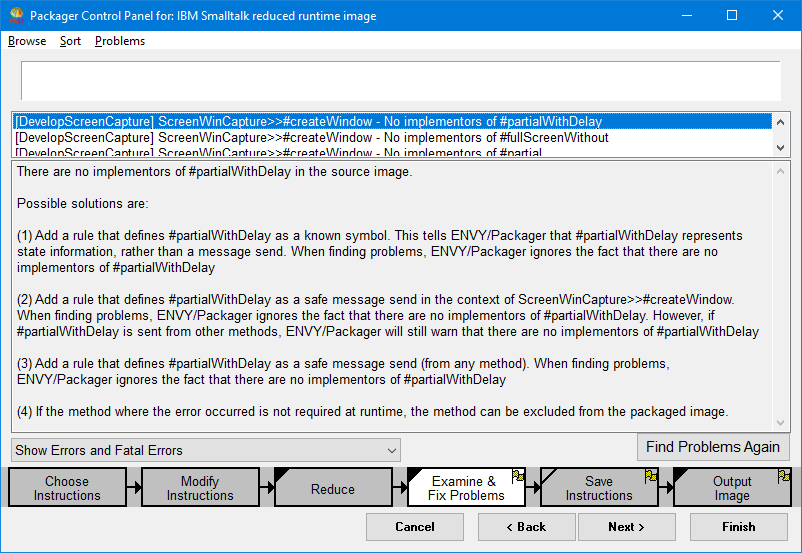
Use the Browse menu to view the packaged image contents, the packaging rules or the Symbol Arguments
Use the Sort menu to choose another order.
Use the Problems menu to review a selected problem and receive suggestions (in the problems menu) as to how to rectify the problem.
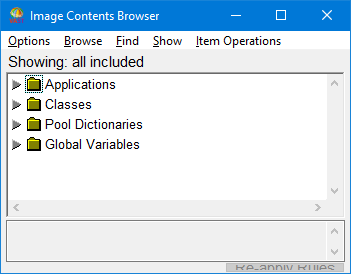
Select Image Contents from the Browse menu to display the Image Contents Browser window. Selecting an application, class, or method in this window displays the reason an application, class, or method is included, ignored or rejected.In this window, you can include or exclude applications, methods, classes, pool dictionaries, or global variables from the packaged image.
From the Options menu, you can Collapse or Expand the lists of applications, classes, pool dictionaries, and global variables. When a list is expanded, you can see what selections have been included in the packaged image and what selections have been excluded.
To include a method in the packaged image that has been excluded, select Show from the Show menu and ensure that Excluded is selected. Then, in the Image Contents Browser, expand the Classes and expand the specific class in which the method exists. Select the method and then, from the pop-up menu, select include. In this way you can modify the objects packaged with your application image.