This example assumes that you have made the application DevelopScreenCapture. (See Example: Using TrailBlazer to create DevelopScreenCapture.) Because DevelopScreenCapture contains a method that uses a platform-specific class, the instructions for making DevelopScreenCapture show how to define classes for both OS/2 and Windows, namely ScreenPMCapture and ScreenWinCapture. The catch to this arrangement is that you have to ensure that you use the correct class for your system.
You can ensure that you use the correct class by defining an OS/2 lineup for OS/2 classes in DevelopScreenCapture and, similarly, a Windows lineup for the Windows classes. For this example, the lineups contain the following components:
Application DevelopScreenCapture
Class DevelopScreenCapture
Subapplication DevelopCapturePM (uses expression testing for OS/2)
Class DevelopCapturePM
Class ScreenPMCapture
Method saveGraphicImage (uses CgPMBMPFileFormat)
. <all other methods remain the same>
.
Subapplication DevelopCaptureWin (uses expression testing for Windows)
Class DevelopCaptureWin
Class ScreenWinCapture
Method saveGraphicImage (uses CgWinBMPFileFormat)
. <all other methods remain the same>
.
Application DevelopScreenCapture
Class DevelopScreenCapture
Subapplication DevelopCapturePM (uses expression testing for OS/2)
Class DevelopCapturePM
Class ScreenPMCapture
Method saveGraphicImage (uses CgPMBMPFileFormat)
. <all other methods remain the same>
.
Subapplication DevelopCaptureWin (uses expression testing for Windows)
Class DevelopCaptureWin
Class ScreenWinCapture
Method saveGraphicImage (uses CgWinBMPFileFormat)
. <all other methods remain the same>
.
|
4.
|
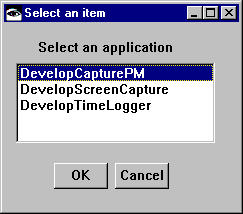
In the prompter displayed, type the name of the subapplication for the OS/2 lineup: DevelopCapturePM; then select OK. The subapplication name is now shown, indented, below DevelopScreenCapture.
|
Repeat the above steps, except for step 4 name the subapplication DevelopCaptureWin.
Next, complete the subapplications by moving and then releasing the appropriate classes to each. If you did not define both ScreenPMCapture and ScreenWinCapture when you completed Example: Defining the classes ScreenPMCapture and ScreenWinCapture, do so now.
|
5.
|
From the Application Manager, select the application DevelopScreenCapture and its class ScreenPMCapture.
|
|
6.
|
|
7.
|
Repeat the above steps for the subapplication DevelopCaptureWin, except move the class ScreenWinCapture to DevelopCaptureWin.
|
1.
|
Select the subapplication and both of its classes. For example, select DevelopCapturePM and then its classes DevelopCapturePM and ScreenPMCapture.
|
|
2.
|
If both classes are versions, select Release from the Classes menu. If one or both classes are editions, select Version/Release All.
|
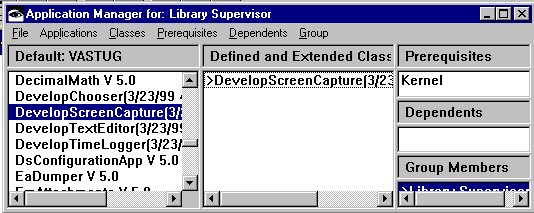
At this point, the Application Manager resembles the following when you select DevelopScreenCapture:
Now that you have subapplications for each platform, assign to each subapplication a Smalltalk expression that evaluates to true only when a system is using the appropriate platform:
|
2.
|
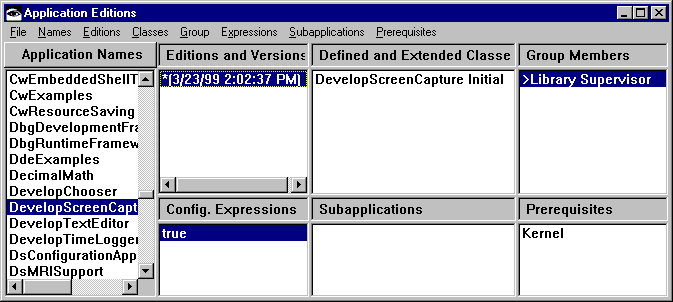
From the list of applications, select DevelopScreenCapture and the edition. Note that the expression displayed in the lower left pane is true.
|
|
3.
|
|
5.
|
Select OK.
|
|
1.
|
Select true.
|
|
2.
|
|
3.
|
Confirm the deletion by selecting Yes in the displayed prompter.
|
Now that you have expressions for the lineups, test them by displaying them in a Workspace. It is essential that only one lineup expression return true. All other expressions must return false.
The following graphic shows that, on a Windows system, the Windows expression displays true and the OS/2 system displays false.
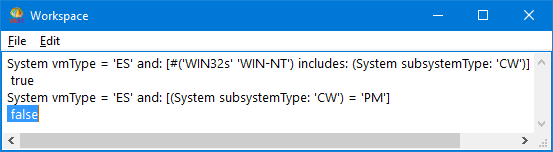
This indicates that the expressions should work as desired and use only subapplication DevelopCapturePM if the platform is OS/2.
Note that when you added the lineups, the prerequisite DevelopmentWidget and its released edition name "disappeared" from the middle and lower right panes. For the subapplications to load successfully, you need to reinstate DevelopmentWidget as the prerequisite:
|
2.
|
|
3.
|
Next, complete steps that are similar to the steps for releasing prerequisites. However, this time release the subapplications to DevelopScreenCapture:
|
2.
|
|
3.
|
From the displayed list of available subapplications, select DevelopCapturePM and the edition; then select >> and OK.
|
Repeat the above steps, except for step 2 select the other lineup expression. And for step 4, select DevelopCaptureWin.
The lineups for OS/2 and Windows should now be functional. To test them, try loading DevelopScreenCapture:
|
1.
|
From an Application Editions browser, select DevelopScreenCapture and the edition that contains the lineups.
|
|
2.
|
Loading from an Application Editions browser enables changes that you have made to the configuration for DevelopScreenCapture, which is in the library, to take effect in your image. You can check in an Application Manager to see if these changes took place. If DevelopScreenCapture loads successfully, its subapplications should be displayed without a > beside them. A > denotes that the subapplication has not been released to its containing application. Thus, if the load was successful, both DevelopCapturePM and DevelopCaptureWin should not have the >.
Finally, try loading DevelopScreenCapture from a system running on the other platform.

As with the other example applications in this guide, you can open an instance of ScreenPMCapture or ScreenWinCapture using DevelopChooser. (See Making your own applications.) However, because the classes ScreenPMCapture and ScreenWinCapture are platform-specific, DevelopChooser needs to open an instance of the correct class for the platform being used.
To change DevelopChooser so it opens an instance of ScreenPMCapture on an OS/2 system and an instance of ScreenWinCapture on a Windows system, repeat the above steps to define OS/2 and Windows lineups for DevelopChooser. For the OS/2 lineup, have the method addApplicationsToList open ScreenPMCapture. For the Windows lineup, have the method open ScreenWinCapture
To view a list of subapplications, select the Application Names push button. A list of subapplications in the library is displayed (upper left pane).
|
6.
|
From the Subapplications menu, select Release Other. A window is displayed, listing all editions and versions of the subapplication.
|
|
7.
|
Select a subapplication edition to replace the edition currently in the lineup; then select OK. The subapplication edition is released to the lineup.
|