Handling team software components : Grouping applications using configuration maps : Example: Creating the configuration map Chooser Map

Example: Creating the configuration map Chooser Map
This example uses the applications you created in previous chapters.
To group these applications into a configuration map, do the following:
1.
2.
From the Names menu, select Create. A window is displayed, prompting you to name the configuration map.
3.
Type, for example, Chooser Map; then select OK.
Note the changes to your Configuration Maps Browser. The new map name is now displayed in the list of configuration maps with its edition time stamp in the list of editions.
4.
5.
From the Applications menu, select Add. A window opens, prompting you for editions to add. Select an edition for each of the following applications: DevelopmentWidget, DevelopChooser, DevelopTextEditor, and DevelopTimeLogger.
6.
Select OK to add the four applications.
7.
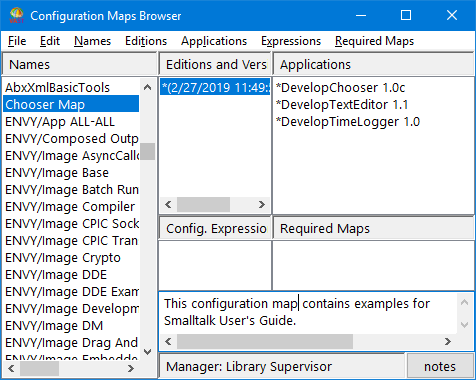
After you finish, the Configuration Maps Browser resembles the following:
Configuration Maps Browser
To create a version of your configuration map, see Example: Creating a configuration map version.