Example: Defining the classes ScreenPMCapture and ScreenWinCapture describes how to define a platform-specific class. Example: Implementing methods for ScreenPMCapture and ScreenWinCapture describes how to add methods, one of which is platform-specific, to the class. If you completed these examples, but only created a class that works on one platform, you can easily change the class and its methods so they work on the other platform by filing out the code, changing it, and filing the changed code into your image.
Suppose you created the class ScreenPMCapture and implemented its methods. To now create ScreenWinCapture and change the method saveGraphicImage so it grabs BMPs for Windows tools, complete the steps given below.

For the sake of illustration, the steps show how to work with code filed out in the generic format. If you want simply to create the other class, you might file out ScreenPMCapture in the VA Smalltalk Base format, and then use one of the browser's File In menu options to add the changed code to your image.
Filing out ScreenPMCapture in the generic format
Begin by filing out the class ScreenPMCapture:
|
2.
|
Open a development browser that displays the class ScreenPMCapture. For example, open a Class Browser on ScreenPMCapture.
|
|
3.
|
Select File Out from the Class menu. Or, if you are using a browser other than a Class Browser, select ScreenPMCapture and then File Out from the Classes menu.
|
Next, open a Workspace on the filed-out class. (Select Open from a File menu; then enter the path and file name.) The displayed file resembles the following:
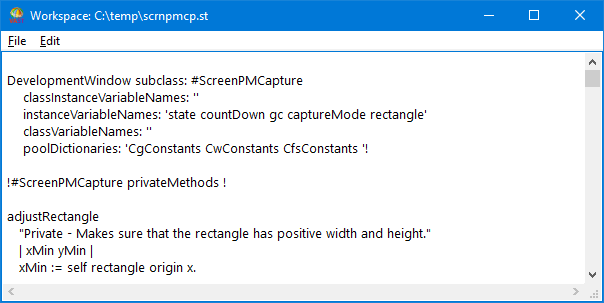
The file contains the class definition for ScreenPMCapture and its private instance methods. The first set of text (or chunk) contains the class definition. If ScreenPMCapture were an extended class, instead of a defined class, the class definition would not be in the file. The second chunk is the Smalltalk expression !ScreenPMCapture methods !. If the methods were class methods, the expression would read !ScreenPMCapture class methods !. The expression instructs the system to add the methods to the class ScreenPMCapture. Because you filed out in the generic format, the expression does not indicate that the methods are private. The remaining chunks contain method definitions.
To create the class ScreenWinCapture and make the methods suitable for Windows, you must change the filed-out code as follows:
|
•
|
|
•
|
In the method saveGraphicImage, change CgPMBMPFileFormat to CgWinBMPFileFormat.
|
|
2.
|
|
3.
|
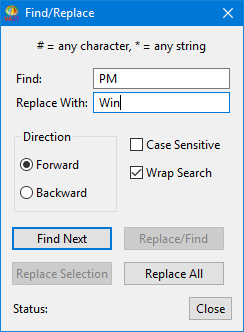
In the displayed prompter, type PM in the Search field and Win in the Replace With field. You do not need to enter a replacement string. However, doing so means you can more quickly revise the code.
|
|
4.
|
|
5.
|
Select Find Next. Then, after the system finds the searched-for text and highlights it, select Replace/Find. The system replaces the current occurrence and finds the next one.
|
Alternatively, you can simply select Replace All. This option replaces all occurrences of the searched-for text throughout the file, without first giving you the chance not to replace specific occurrences of the text.
|
6.
|
Repeat step 5 until all three occurrences of PM are replaced with Win. After you change the last occurrence, clicking on Find Next causes the Find/Replace window to display Status: String Not Found along the bottom of the window.
|
|
7.
|
Click on Close to close the Search/Replace window.
|
At this point, you might change the expression !ScreenWinCapture methods ! to to !ScreenWinCapture privateMethods ! so it designates the methods as private. But this change is not necessary.
|
9.
|
Filing the changed code into the subapplication DevelopCaptureWin
Now, create the class ScreenWinCapture in your image by filing it into the subapplication DevelopCaptureWin. ( Example: Defining application lineups for OS/2 and Windows describes how to create DevelopCaptureWin. If you have already created DevelopCaptureWin and ScreenWinCapture, but want to complete this example, create another subapplication of DevelopScreenCapture to file the code into. Name it, for example, DevelopFileInTest. You can delete the subapplication after you file in the changed code and examine its contents.)
|
1.
|
From the list of applications in an Application Manager, select the subapplication DevelopCaptureWin (or your test subapplication).
|
One way to file in the code is to select File In from the Applications menu, and then enter the full path name displayed in the title bar of the Workspace.
|
1.
|
Activate the Workspace window; then select the class definition for ScreenWinCapture with your mouse or the keyboard. When you file in only a class or application definition from a Workspace, Transcript, or description pane, you select the definition and its ending single exclamation point (!). Thus, select the following:
|
|
2.
|
|
1.
|
Select the Smalltalk expression !ScreenWinCapture methods ! (or !ScreenWinCapture privateMethods !) and all text following it to the end of the file.
|
|
2.
|
After you file in the code, the system creates the class ScreenWinCapture and its methods. You can browse the new class by clicking on ScreenWinCapture now displayed in the Application Manager and then selecting Browse Class from the Classes menu.