Chapter 24 UI Assistant Parts Toolbar

The Parts page gives you quick and easy access to all of the parts found on the Composition Editor’s palette. As a result, you may hide the palette in order to conserve screen real estate. As all of the common visual parts are directly accessible from this page, you may find this page to be a more convenient mechanism for choosing part types (e.g., you don’t need to switch between categories to access labels, buttons and lists).
The ability to automatically invoke sticky mode via Alt-clicking on any of the buttons means that you can avoid frequent trips to the Sticky checkbox. If the Auto Sticky property is set (via the Setup Page), then all part adding functions will use sticky mode.
In addition to the most common visual parts that are directly accessible from this page, quite a few others are available by resizing the UI Assistant window (in floating mode only).

Selection Tool
 Selection Tool. Use this button to set the Composition Editor back to selection mode. This will turn off sticky mode if it is on.
Add Part
 Add a part to the Composition Editor. This command opens the standard Add Part dialog.
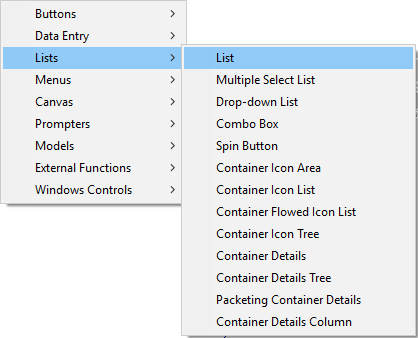
Right-click for a list of available parts. The list of parts is dynamically determined based on the categories currently available to the Composition Editor.
Widget Buttons
Most of the commonly used widgets appear on this page. Resize the window to see more buttons.
Alt-click to automatically invoke sticky mode.
Right-click to see a list of subclasses of the selected class (if any).
Buttons
 Button
 Toggle
 Radio Button Set
Data Entry Widgets
 Text
Text Formatted Text
 Multi-line Text
 Label
LabelLists
 List
List Multiple Select List
 Drop-down List
 Combo Box
 Spin Button
Icon Lists
 Icon Area
 Icon List
 Flowed Icon List
 Icon Tree
Table Lists
 Table List
 Table Tree
 Table Column
Canvas
 Shell
Shell Form
Form Group Box
 Scrolling Window
Canvas
 Portable OS/2-style Notebook
 Portable Windows-style Notebook
 Notebook Page
Parts ComboBoxes

The combobox on the right is a list of all of the parts categories in use by the Composition Editor. The default category is “** All **”. The combobox on the right is used to select a part from the selected category. The button on the right loads the cursor with an instance of the selected part. Alt-clicking the button automatically invokes sticky mode.
Right-click on the right-hand combobox for a list of available parts in the selected category.
Last modified date: 01/20/2026