Chapter 18 UI Assistant Standard Toolbar

Replicates the Composition Editor’s standard toolbar. It has been augmented with standard Cut, Copy and Paste functions as well as Undo and Redo.
Test Window
 Runs a working instance of your visual part.
Selection Tool
 Selection Tool. Use this button to set the Composition Editor back to selection mode. This will turn off sticky mode if it is on.
Show All Connections
 Show all connections for all parts.
Hide All Connections
 Hide all connections for all parts.
Toggle Grid
 Toggle the display of the grid on and off for the selected parts.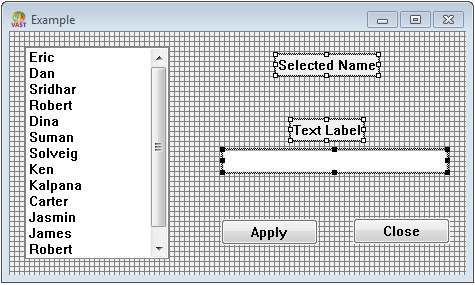
Snap To Grid
 Aligns the selected parts to the grid. This causes the upper left corner of the selected parts to be repositioned to the nearest grid coordinate. The grid does not need to be visible for this to work.
Align Left
 Align the selected parts with the left edge of the last part selected (the one with the solid black handles).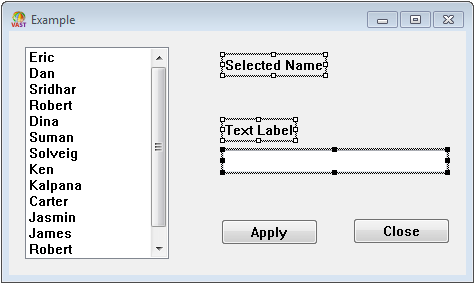
Align Center Horizontally
 Align the selected parts along the vertical axis of the last part selected (the one with the solid black handles).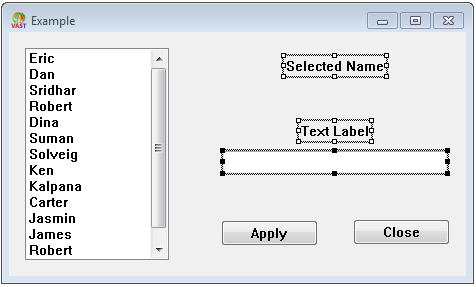
Align Right
 Align the selected parts with the right edge of the last part selected (the one with the solid black handles).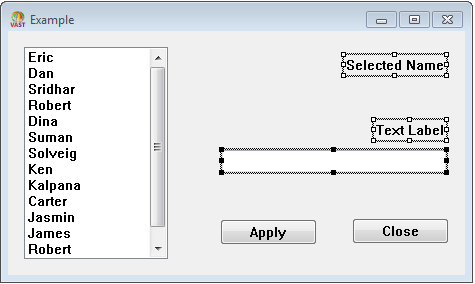
Align Top
 Align the selected parts with the top edge of the last part selected (the one with the solid black handles).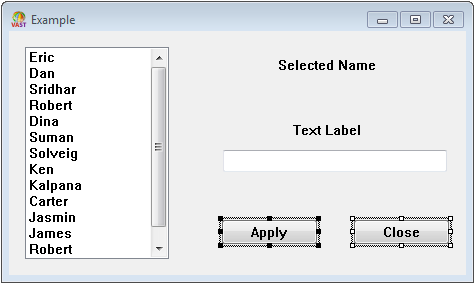
Align Center Vertically
 Align the selected parts along the horizontal axis of the last part selected (the one with the solid black handles).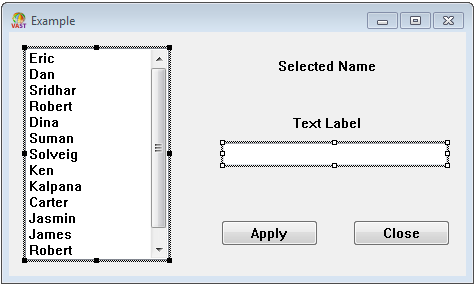
Align Bottom
 Align the selected parts with the bottom edge of the last part selected (the one with the solid black handles).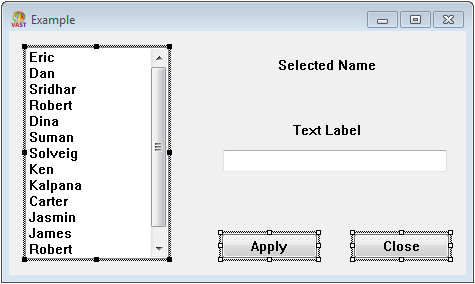
Distribute Horizontally
 Spaces the selected parts evenly between the left and right borders of the parent part, typically a window.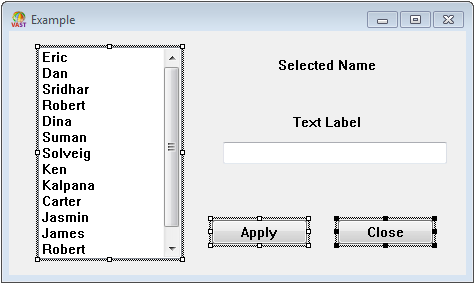
Alt-click to distribute the selected parts horizontally within their own bounding box. The bounding box is the smallest rectangle that encompasses all of the selected parts.
Distribute Vertically
 Spaces the selected parts evenly between the top and bottom borders of the parent part, typically a window.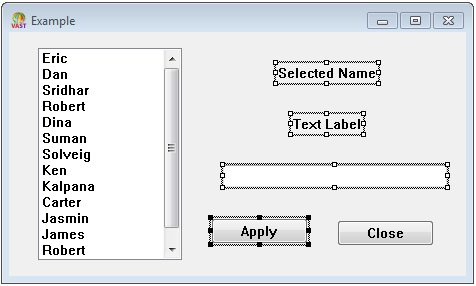
Alt-click to distribute the selected parts vertically within their own bounding box. The bounding box is the smallest rectangle that encompasses all of the selected parts.
Match Width
 Sizes the width of the selected parts to match that of the last part selected (the one with the solid black handles).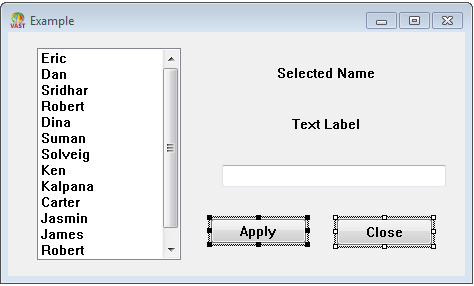
Match Height
 Sizes the height of the selected parts to match that of the last part selected (the one with the solid black handles).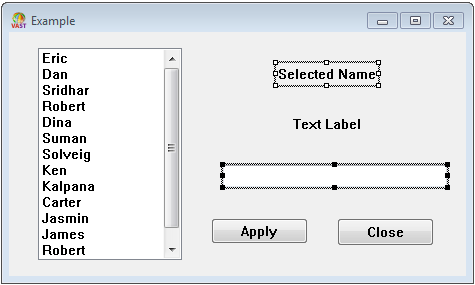
Cut Selections
 Remove currently selected parts from layout, and place them on the clipboard. This is equivalent to the Composition Editor’s “Edit | Cut” menu command.
Copy Selections
 Copy the currently selected parts to the clipboard. This is equivalent to the Composition Editor’s “Edit | Copy” menu command.
Paste Selections
 Load the cursor with the parts on the clipboard. This is equivalent to the Composition Editor’s “Edit | Paste” menu command.
Duplicate
 Duplicate the currently selected parts.
Clear Selections
 Remove currently selected parts from layout.
Undo
 Undo the last command. This is equivalent to the Composition Editor’s “Edit | Undo” menu command.
Redo
 Redo the last command. This is equivalent to the Composition Editor’s “Edit | Redo” menu command.
Last modified date: 01/20/2026